
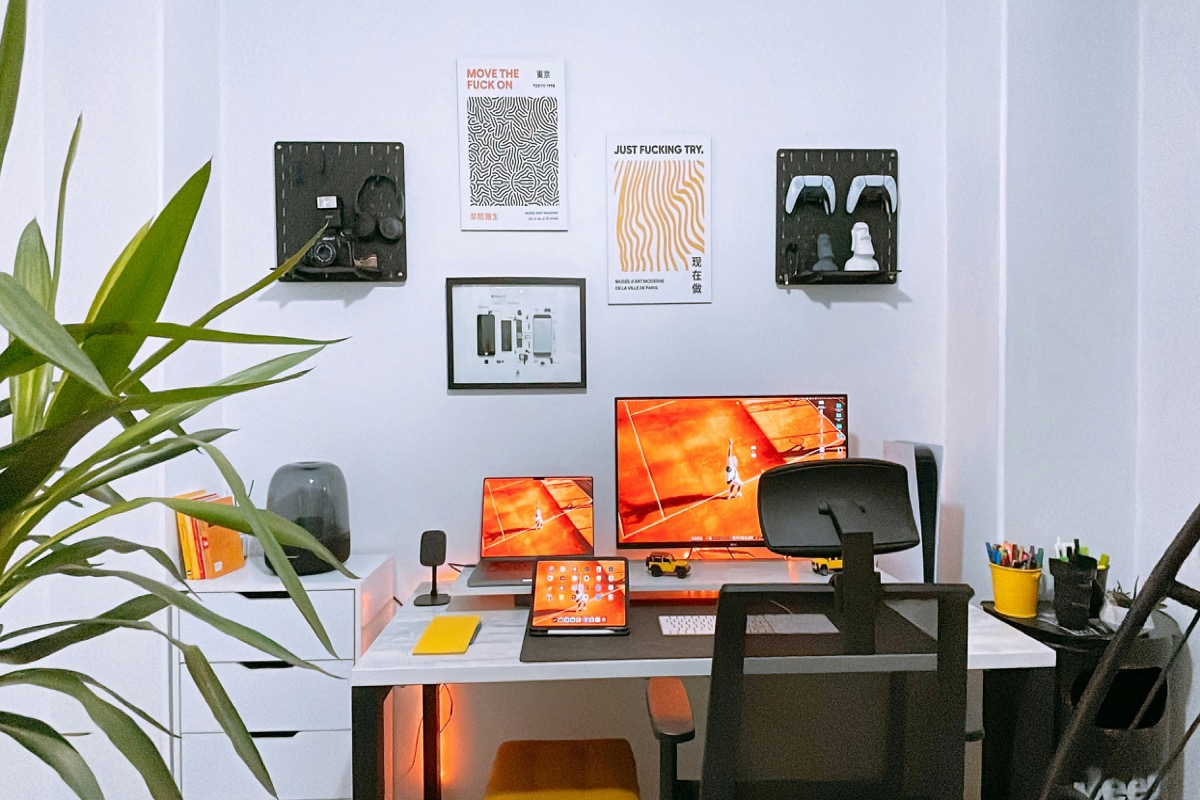
Working from home is no longer a temporary workaround — for millions of people, it's just how work happens now. Whether you're a remote employee, a freelancer, a student, or a small business owner running things from home, the quality of your computer setup has a direct impact on your productivity, your comfort, and your ability to stay reliable through long work days.
At STS Computer Repair, we work with home users and small businesses throughout Cape Coral and Lee County every day. We've seen setups that work beautifully — and we've seen the frustration that comes from a cobbled-together home office that wasn't built to hold up. This guide covers the essentials for putting together a home office setup that actually performs.
Start With the Right Computer — or Upgrade What You Have
Your computer is the foundation. If it's more than five or six years old and struggling with video calls, slow loading times, or general sluggishness, it may be worth upgrading or having it serviced before adding accessories around it.
For most remote workers, a modern laptop or desktop with these specs will handle the workload comfortably:
- RAM: 16 GB minimum — 8 GB is tight once you have video calls, spreadsheets, and a browser with multiple tabs all running at once
- Storage: An SSD (solid-state drive) makes a significant difference in speed; avoid spinning hard drives as a primary drive if you can
- Processor: Any recent Intel Core i5/i7, AMD Ryzen 5/7, or Apple M-series chip will handle typical remote work without breaking a sweat
- Operating system: Keep it current — Windows 11 or macOS Ventura or later — especially as Windows 10 support ends in October 2025
If your current machine is mostly capable but feeling slow, a RAM upgrade or SSD swap can extend its life significantly. That's something we do regularly for clients here in Cape Coral — often for a fraction of the cost of a new machine.
Choose a Monitor That Makes Sense for Your Work
A good external monitor is one of the best investments you can make for a home office. Working on a laptop screen alone — especially for more than a few hours a day — is harder on your eyes and limits how much you can have visible at once.
What to look for in a home office monitor
- Size: 24–27 inches is the sweet spot for most desks and budgets; 32 inches works well if you have the space
- Resolution: 1080p (Full HD) works fine at 24 inches; go 1440p or 4K at 27 inches or larger for sharper text
- Panel type: IPS panels offer better color accuracy and wider viewing angles than TN panels — worth it for long work sessions
- Connectivity: Look for HDMI and DisplayPort inputs; USB-C with power delivery is a bonus if you're using a modern laptop
- Adjustability: A monitor with height and tilt adjustment makes ergonomic setup much easier
If you're not sure which monitor to pair with your laptop or desktop, the team at DeskBusters has a well-researched guide on the best monitors for remote work that covers different use cases and budget ranges.
Docking Stations and USB-C Hubs: One Connection Does It All
If you're using a laptop as your main work machine, a docking station or USB-C hub is probably the single most useful thing you can add to your setup. The idea is simple: instead of plugging in your monitor, keyboard, mouse, webcam, and charger separately every time you sit down, you plug in one cable and everything connects at once.
Docking station vs. USB-C hub — what's the difference?
A USB-C hub is a compact, portable adapter that adds several ports (HDMI, USB-A, SD card, etc.) to your laptop. It's affordable and convenient for travel, but it typically doesn't supply enough power to charge a power-hungry laptop while in use.
A docking station is a more robust device, usually connected to a wall outlet, that powers your laptop while also providing a full set of ports — including multiple displays, Ethernet, audio, and several USB ports. For a permanent home office setup, a docking station is almost always the better choice.
Look for these features when shopping:
- Power delivery of at least 60–90W if you want it to charge your laptop
- Support for dual monitors if you plan to use two screens
- A dedicated Ethernet port for a wired internet connection
- Compatibility with your specific laptop — not all docks work equally well with all machines
For a thorough breakdown of what's available, DeskBusters' guide to USB-C hubs and docking stations is a solid starting point with options across several price ranges.
Keyboard and Mouse: Don't Overlook the Basics
Spending eight hours a day on a cramped laptop keyboard and trackpad takes a toll — on your wrists, your posture, and your patience. A full-size external keyboard and a proper mouse are inexpensive upgrades that make a meaningful difference.
Keyboard tips
- A tenkeyless (TKL) keyboard saves desk space without losing the keys most people use; a full-size layout is better if you work with numbers frequently
- Wireless keyboards keep the desk cleaner; wired keyboards eliminate battery concerns
- Mechanical keyboards have better tactile feedback for typing-heavy work; membrane keyboards are quieter and often cheaper
Mouse tips
- Look for adjustable DPI settings so you can tune sensitivity for your monitor size and resolution
- An ergonomic shape reduces wrist strain over long sessions
- If you use a laptop at a desk regularly, a wireless mouse with USB-A or Bluetooth connectivity pairs well with a docking station
Webcam: Look Professional on Every Call
Built-in laptop webcams have improved, but they still tend to produce grainy, poorly lit video — especially in a home environment with inconsistent lighting. If video calls are part of your regular workday, a dedicated external webcam is worth the investment.
- Resolution: 1080p is the standard for professional video calls; 4K is available but usually overkill
- Field of view: A 78–90 degree FOV works well for most home offices; wider angles can pick up too much background
- Autofocus and low-light performance: These matter more than resolution in practice — look for reviews that test real-world performance, not just specs
- Microphone: Many webcams include a built-in microphone; for better audio quality, a separate USB microphone or a headset with a boom mic is a worthwhile addition
Good lighting matters as much as the camera itself. A simple ring light or a small desk lamp positioned in front of you (not behind) will improve your video quality dramatically at minimal cost.
Wi-Fi and Connectivity: The Foundation of Remote Work
A fast, stable internet connection isn't optional for remote work — it's the whole thing. Video calls drop, uploads stall, and remote desktops become unusable when your connection is unreliable.
Go wired when you can
An Ethernet cable run directly from your router to your computer is always more stable and faster than Wi-Fi. If your home office isn't near your router, a powerline adapter or a MoCA adapter can extend a wired connection through your home's existing wiring without running new cables through walls.
Improve your Wi-Fi if you need it
- Position your router centrally and away from walls, floors, and large appliances that can block the signal
- Use the 5 GHz band for faster speeds when you're within range; fall back to 2.4 GHz for better range in larger homes
- If your router is more than four or five years old, upgrading to a Wi-Fi 6 router makes a noticeable difference in homes with multiple connected devices
- A mesh Wi-Fi system (like Eero or Google Nest) can eliminate dead zones in larger homes
Have a backup plan
Keep your phone's mobile hotspot available as a fallback. If your ISP goes down during a critical meeting, being able to switch to cellular data for an hour can save the day.
Backups: Protect Your Work Before Something Goes Wrong
This is the part most people skip until they've lost something important. Hard drives fail. Laptops get dropped. Files get accidentally deleted. A basic backup routine protects you from all of it.
The 3-2-1 rule, simplified
Keep 3 copies of important data — your original files plus two backups. Store them on 2 different types of media (for example, an external drive and cloud storage). Keep 1 copy off-site — which cloud backup handles automatically.
Practical backup options for home workers
- Cloud backup: Services like Backblaze (about $99/year) back up your entire computer automatically in the background — easy to set up and genuinely reliable
- External hard drive: A 1–2 TB external drive paired with Windows Backup or Time Machine on Mac gives you a fast local restore option
- Cloud storage for active files: Google Drive, OneDrive, or Dropbox keeps your current working files synced and accessible from anywhere — and restores deleted files for up to 30–180 days depending on your plan
If you've never set up a backup routine and aren't sure where to start, we can help you get something reliable in place. It's one of the most common things we help clients with, and it usually takes less than an hour to set up properly.
Ergonomics: Your Setup Affects How You Feel at the End of the Day
A comfortable home office isn't just a luxury — it reduces fatigue, protects against repetitive strain injuries, and helps you stay focused through a full workday. A few adjustments make a significant difference.
- Monitor height: The top of your screen should be at or just below eye level. If your monitor doesn't adjust high enough, a monitor arm or even a few books under the stand can fix it
- Chair and posture: Your feet should rest flat on the floor, knees at roughly a 90-degree angle, with your lower back supported. An adjustable chair is worth the investment if you're sitting for six or more hours a day
- Keyboard and mouse position: Your elbows should be at about 90 degrees, with your forearms roughly parallel to the floor. A keyboard tray or a lower desk surface can help if your desk is too high
- Breaks: No ergonomic setup fully compensates for sitting still for hours. The 20-20-20 rule — every 20 minutes, look at something 20 feet away for 20 seconds — reduces eye strain significantly
Cable Management: Small Detail, Big Impact
A desk buried in cables is frustrating to work at and makes troubleshooting harder when something goes wrong. A little cable management goes a long way.
- Use velcro cable ties (not plastic zip ties you have to cut) to bundle cables together — they're reusable when you need to change things
- A cable management tray or raceway mounted under your desk keeps power strips and excess cable off the floor and out of sight
- Label cables at both ends if you have several similar-looking ones — a label maker or even a piece of tape with a marker saves time when you need to trace something
- A single docking station dramatically reduces the number of cables on your desk — another good reason to invest in one
Putting It All Together
You don't have to upgrade everything at once. If budget is a constraint, prioritize in this order: a reliable computer, a stable internet connection, an external monitor, and a real keyboard and mouse. Everything else — the webcam, the docking station, the ergonomic accessories — can be added over time as you identify what's actually limiting you.
The goal is a setup that you can sit down at every morning without thinking about it — one that just works, day in and day out. If you're building out your home office and want to compare options on gear, DeskBusters is a useful resource with home office gear buying guides covering everything from monitors to desk accessories.
Having Computer Trouble in Your Home Office?
Whether your home office PC is running slow, your Wi-Fi is unreliable, or you need help setting up a backup routine, STS Computer Repair serves Cape Coral, Fort Myers, and surrounding Lee County communities with in-home and remote support. We'll come to you — no need to haul your computer anywhere.
Get in Touch